Cars -- 11 days ago

Automatic modes are designed for speed, not subtlety. A few manual adjustments can turn a competent snapshot into a photograph with intention and restraint.
Modern camera phones have reached the awkward stage where they are far more capable than their owners. On paper, the camera on your OPPO Find X8 Pro, HONOR Magic7 Pro, HUAWEI Pura 80 Pro or Ultra, or Sony Xperia 1 VII reads like a brochure for a small film studio. In practice, most of us leave everything on Auto, jab the shutter, and then blame the hardware when the results look like a security still from a motorway service station.
Learning how to adjust phone camera settings like a pro is not about becoming a full-time cinematographer. It is about nudging these extremely clever devices away from their lowest common denominator instincts and towards something closer to intent. You do not need to master every dial. You do, however, need to know where the important ones are and when to touch them.
Think of this as a short civil service briefing on the subject. Calm, practical, and only mildly judgmental.
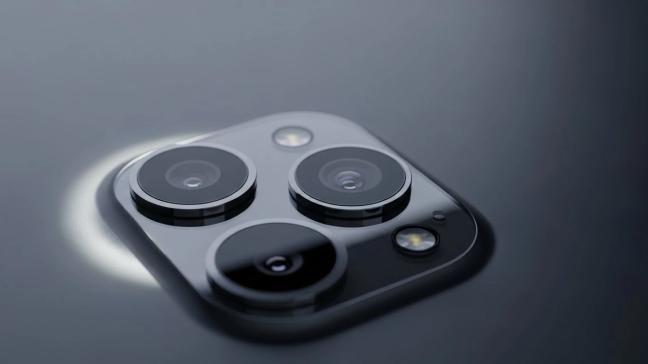
Before you start talking about ISO in public, you have to find the part of the camera app where the phone stops treating you like a well-meaning amateur.
On the OPPO Find X8 Pro, that place is called Master or Pro mode. Hidden a swipe or two away from the default camera screen, it replaces cheerful icons with sliders for ISO, shutter speed, white balance and focus, and quietly offers RAW files for when you intend to edit properly later. There is even a dedicated camera button on the side of the phone. Double press to launch the camera instantly, press again to shoot, long press for burst, and, in landscape, swipe across it to control zoom. It is as if someone at OPPO realised that sometimes you actually want to behave as though you know what you are doing.
The HONOR Magic7 Pro calls it Pro mode, with a row of letters along the bottom for ISO, shutter speed, metering, focus and white balance. Select one, drag the slider, and you are suddenly responsible for your own exposure. The phone will still help, but it stops second-guessing you every time a cloud moves.
On the HUAWEI Pura 80 Pro and Pura 80 Ultra, Pro mode lives in a similar place. Tap it, and the genteel consumer interface gives way to controls that let you set ISO, shutter speed, metering, white balance and even manual focus, while that Ultra Lighting main camera and variable aperture sit in the background, waiting to be pointed at something interesting.
The Sony Xperia 1 VII is more direct. It ships with a Photography Pro app that looks suspiciously like a mini Alpha camera. There are modes labelled P, S and M. There is a live histogram. There is a level indicator. There is a proper two-stage shutter button on the side. This is not a phone that wants to be your first camera. It wants to be your second Sony.
Step one, therefore, is simple. Find these modes. Open them. Poke around. Accept that the interface will look a little more serious and that this is, on balance, a good sign.
Once inside the grown-up part of the app, two settings matter more than the rest: ISO and shutter speed. Together, they govern how bright the picture is and how motion is handled. Everything else is mostly nuance.
ISO is essentially how loudly the sensor shouts. A low ISO is quiet and clean, excellent in daylight or bright interiors. A high ISO is loud and grainy, the digital equivalent of turning up a bad microphone in a dark bar. Auto modes tend to panic in low light and crank ISO far higher than strictly necessary, because blur terrifies them more than noise.
Shutter speed is how long the sensor is allowed to gather light. A fast shutter freezes motion: splashes, hair, badly judged dance moves. A slow shutter lets things smear: flowing water, light trails, the entire contents of a busy street.
On the OPPO Find X8 Pro, HONOR Magic7 Pro, and HUAWEI Pura 80 Pro/Ultra, Pro mode lets you control both. The professional approach is simple enough: in good light, keep ISO as low as possible and use shutter speed to control brightness. In low light, slow the shutter until things you care about start to blur, only then allow ISO to creep up. Night scenes of buildings and streets can easily tolerate a half-second exposure if the phone is braced on a wall or a mini tripod. People dancing cannot.
On the Sony Xperia 1 VII, you can even choose S mode and specify the shutter speed you want - say 1/1000th of a second for sport or 1/15th for light trails - and let the phone juggle ISO to match. Once you are comfortable, M mode gives you both settings and a little more adrenaline. The live histogram at the top of the screen stops all this feeling like guesswork and starts feeling unreasonably competent.
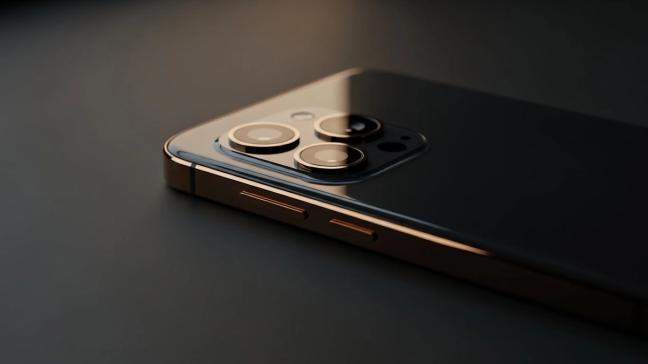
Auto white balance is one of those inventions that works beautifully right up until it does not. A phone walking between tungsten lamps, neon, and daylight will cheerfully swing colours from warm to cold as it tries to decide what reality should look like. If you are shooting a series in one place, this produces a collection of images that look as though they happened in several different universes.
In Pro mode on the HONOR Magic7 Pro and HUAWEI Pura 80 Pro, you can tap white balance and pick a preset or dial in a colour temperature. Do that once at the start of a scene, and your colours will remain consistent from frame to frame. Indoor dinner party under warm lights. Fine, set a warmer white balance and accept the amber glow as part of the mood, rather than something the phone should iron out. Overcast street outside. Set a cooler value and let the greys be greys.
The OPPO Find X8 Pro will let you do the same in Master mode, while the Xperia 1 VII goes further and offers Kelvin values and creative looks. Want a slightly muted, documentary feel. Pick a neutral creative profile, set a fixed white balance near daylight and let the scene carry the colour. Want something punchier. Pick a vivid profile and lean into it. The important part is that you decide once, rather than letting the phone tinker with colours every time it sees a new light bulb.
The next setting that separates grown-ups from Auto is metering. This is how the phone decides what “correct” brightness looks like.
Evaluative or matrix metering, the default, looks at the whole frame and averages things out. It is fine when nothing important is being blown out or lost in shadow. It sulks when asked to handle a bright window behind a person or a shaft of sunlight across half the scene.
In Pro mode on the HONOR Magic7 Pro and Pura 80 series, you can switch to spot metering. That tells the phone to judge brightness based on a small area, usually whatever you have tapped. Put that spot on a face in front of a bright window, and the camera will expose for the skin rather than the glass. The background may blow out, but the person will look like a human being rather than a silhouette with good hair.
The Xperia 1 VII offers similar control via Photography Pro. Combined with the live histogram, it makes it very hard to fool yourself about exposure. If the graph is crushed to the left, your image is too dark. Crushed to the right, it is too bright. Slide exposure compensation or adjust shutter and ISO until the graph looks civilised, and carry on.
Once you get used to this idea, you start to treat exposure as a choice instead of a punishment. Bright and airy. Dark and moody. The scene supports both; the settings decide which you get.
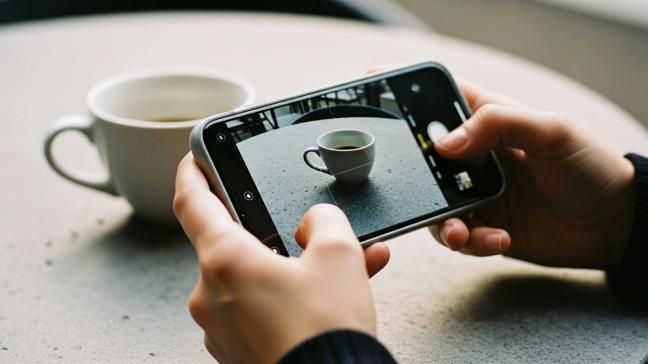
Auto focus on modern phones is unnervingly good, but it cannot read your mind. It will prioritise whatever it has been told to prioritise, which is often “the closest contrasty thing in the frame”. That is not always a face.
All four of our phones will let you tap to focus, which should be the bare minimum of your interaction. In Pro mode, they go further. The HONOR Magic7 Pro and Pura 80 Pro/Ultra offer manual focus sliders and, in some cases, focus peaking-coloured outlines around in-focus edges. This is invaluable for close-up product shots or anything where you want to control exactly where the sharpness sits.
The Xperia 1 VII takes its Alpha heritage seriously. Photography Pro offers different focus modes, including continuous AF and manual, along with eye detection for people and often animals. Half-press the physical shutter button, wait for the little eye box to lock on, then fully press to shoot. It feels less like using a phone and more like using a small, slightly smug camera.
Once you have tried manual focus with peaking, particularly for things like food, watches or drinks, it becomes harder to tolerate the phone deciding that the napkin in the background is more interesting than the thing you are actually photographing.
For the most part, HEIF and JPEG files are fine. They are small, they look decent straight away, and the phone has applied all sorts of clever adjustments to make them ready for polite company.
Sometimes, though, you want a little more control, especially with tricky light, high contrast, or scenes you care about more than average. This is where RAW comes in. A RAW file keeps far more information, particularly in the shadows and highlights, and allows you to adjust exposure, white balance and colour grading later without the image collapsing into mush.
The OPPO Find X8 Pro will happily give you RAW files from its Master mode. The HUAWEI Pura 80 Pro and Ultra can do the same from Pro mode. The Xperia 1 VII, being a Sony, practically expects it. You will need a proper editor on your phone or, ideally, a computer later, but the results speak for themselves when you pull detail back from a blown sky or lift a shadowed face into visibility without everything turning into a watercolour.
You do not need RAW for every coffee and dog walk. Use it for the things you might actually print. Landscapes on holiday. Important family events. That city scene you secretly hope might be good enough to frame.
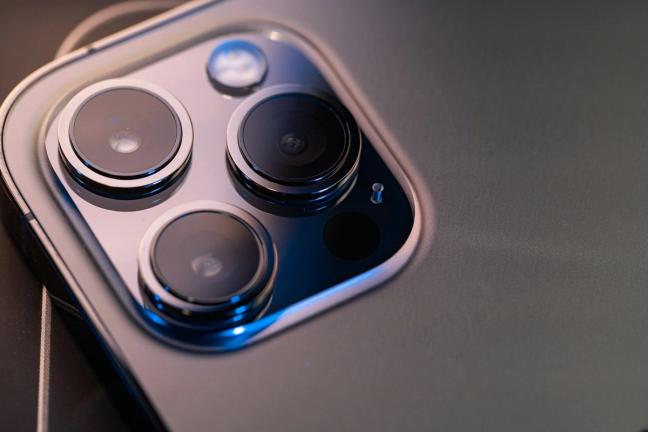
Finally, do not ignore the physical design flourishes that exist precisely to make all of this easier.
The OPPO Find X8 Pro has its camera control button. Treat it as a reflex. Phone out of pocket, double press, you are in the camera before the moment has wandered off. In landscape, sliding a thumb along the button to zoom is infinitely more elegant than mauling the screen.
The Xperia 1 VII has its half-press shutter key, just like a proper Alpha. Use it to pre-focus and stabilise before the shot. Your hit rate of sharp images will climb immediately.
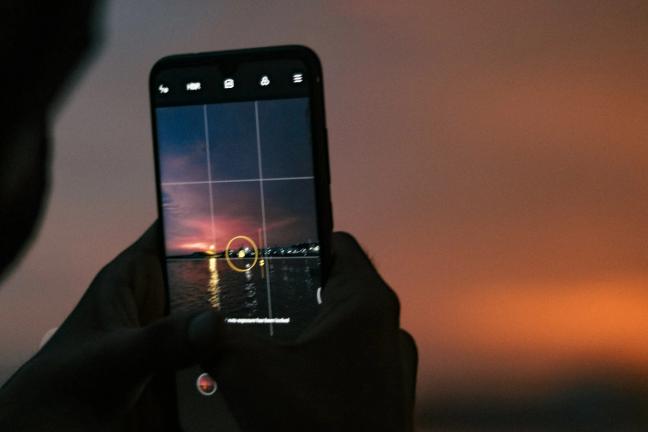
Even on the HONOR and HUAWEI devices, where the buttons are less bespoke, simple habits help. Assign camera launch to a double-tap of the power button. Turn on gridlines and level indicators in settings so that you stop accidentally tilting horizons. Leave Pro mode a swipe away on the mode carousel. All of these small adjustments reduce the time between seeing a photograph and actually taking it, which is the difference between “I nearly got a great shot” and “look at this”.
Adjusting your phone camera settings like a pro is not about abandoning Auto forever and shooting in full manual while lecturing strangers about dynamic range. It is about knowing when Auto is doing a decent job and when it needs to be gently overruled.
Find the Pro or Master modes on devices like the OPPO Find X8 Pro, HONOR Magic7 Pro, HUAWEI Pura 80 Pro and Ultra, and Sony Xperia 1 VII. Learn to keep ISO low, shutter speed sensible, white balance consistent and focus intentional. Decide what brightness and colour you want rather than accepting what a nervous algorithm thinks is safe. Use RAW sparingly and physical controls whenever they exist.
Do that, and you will find that your phone, which has been quietly waiting for you to behave like this all along, starts to deliver results that look less like accidents and more like decisions. And if anyone asks what changed, you can always shrug and say the camera got an update. There is no need to confess that the real update was you.
To receive the latest in style, watches, cars and luxury news, plus receive great offers from the world’s greatest brands every Friday.